How to Update Mods in Minecraft
So Minecraft updated and now you want to quickly update your game so you can play on a server with your friends. This guide will walk you through doing just that!
Video format of this guide here.
The first thing that you will need to do, is find out which Mods will need to be updated.
To find out all of the mods you will need to update, open File Explorer and type %appdata% in the search menu, next click .minecraft, then mods.
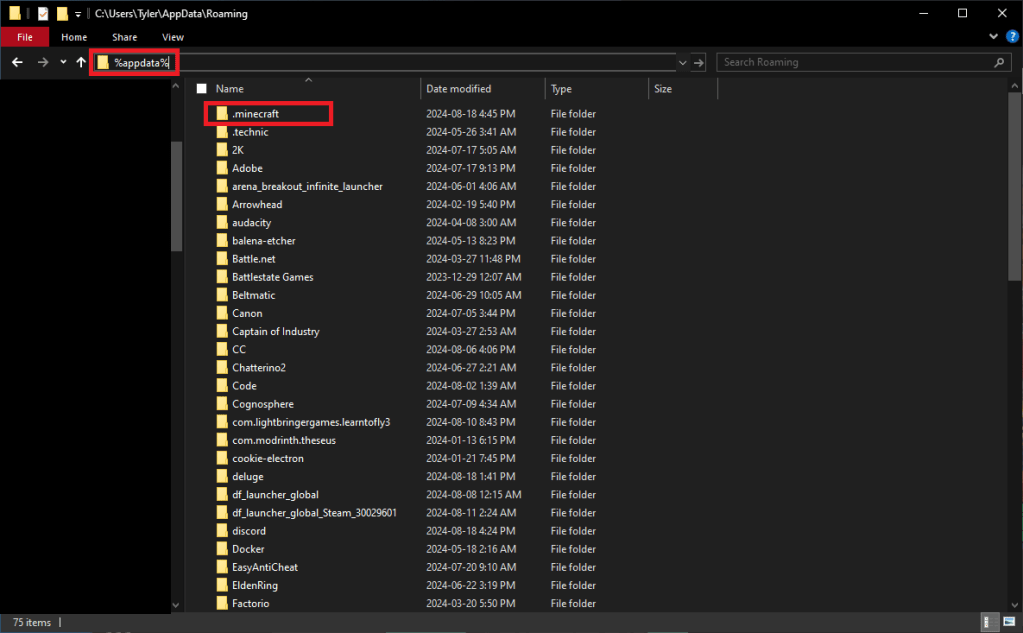
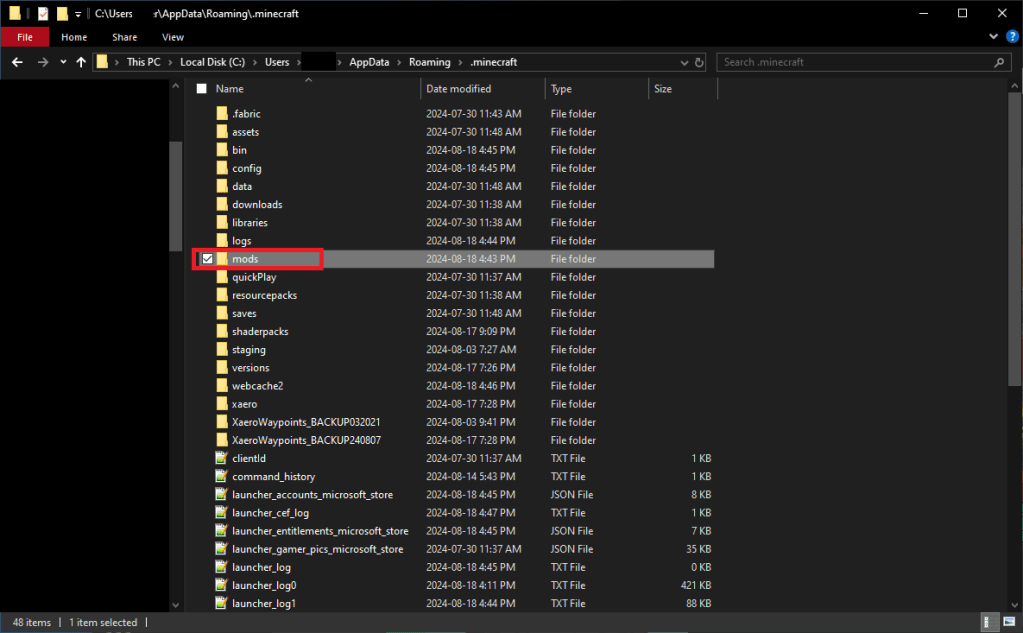
You will see a list of all the mods in this folder, which you should write down so you don’t forget any mods to update. One you have listed down all of the mods you will need to update, delete the Old Mods from the Mods folder.
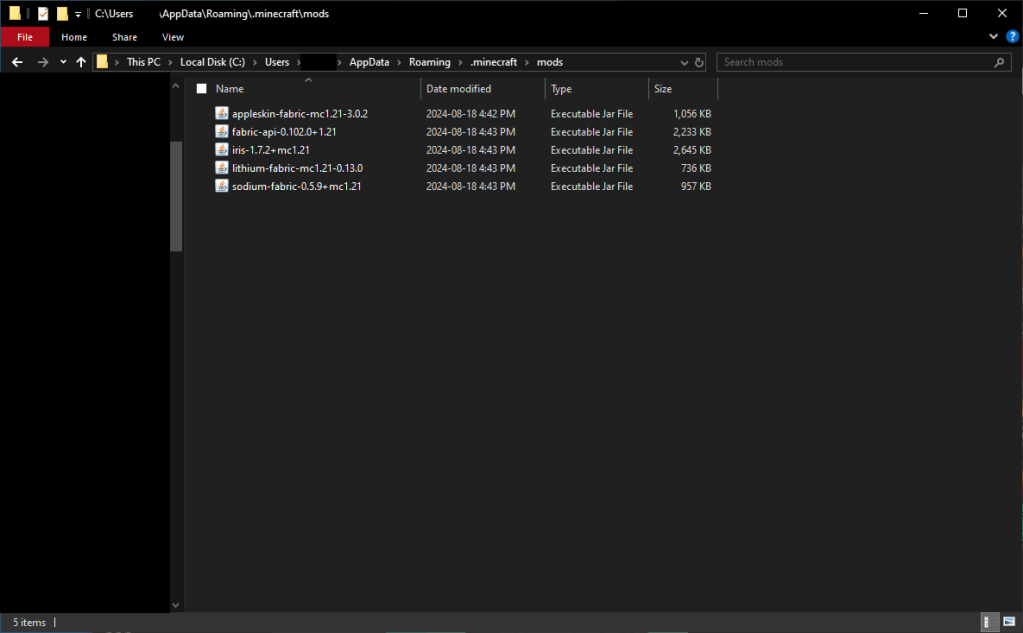
Now that we know which mods we have and need to be updated, head over to Modrinth or whichever mod website you get your mods from.
From there you are going to want to check and see if the mod(s) you are wanting to use are updated to the most recent version of Minecraft.
Most websites will have a ‘Last Updated’ message on the mod. If the mod was recently updated, then it’s likely that the mod will work on the newest version of Minecraft.
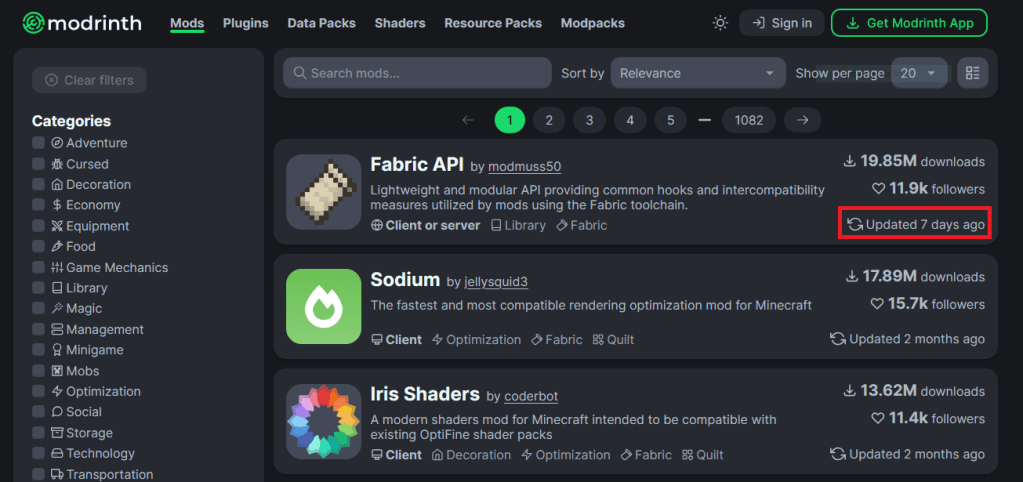
A better way to check, is to click on the mod you want, then go to Versions, then check to see which version of the Fabric Loader/Minecraft the mod works for.
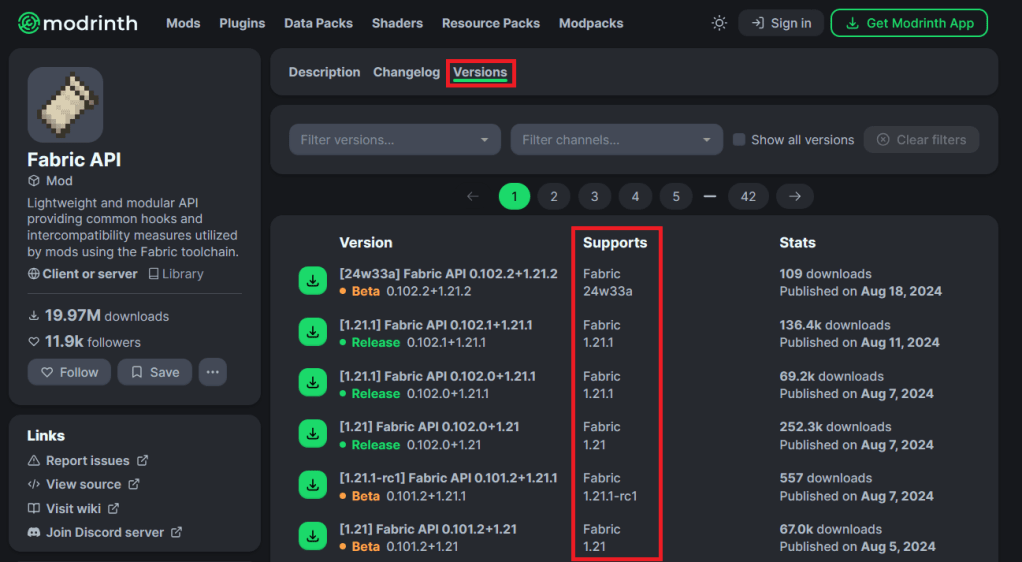
In this case, the mod works on the most recent version of the game. So we will download it.
Do this for all of the other mods that you wish to use in Minecraft.
If you find a mod that does not support the most recent version of Minecraft, then you will have to wait until that mod is updated to the version you are trying to play on.
Now that we have all of our updated mods downloaded, we need to update the Mod Loader we are using. In my case, I am using Fabric Loader.
Download the most recent version of the Fabric Loader. Open it, install for the version of Minecraft you are playing and use the most recent Loader Version.
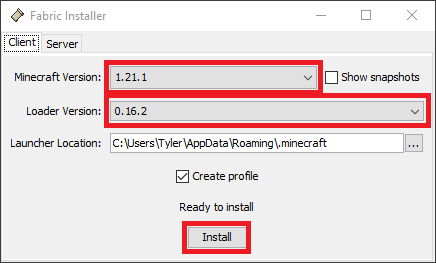
This should create a new profile in your Minecraft Launcher.
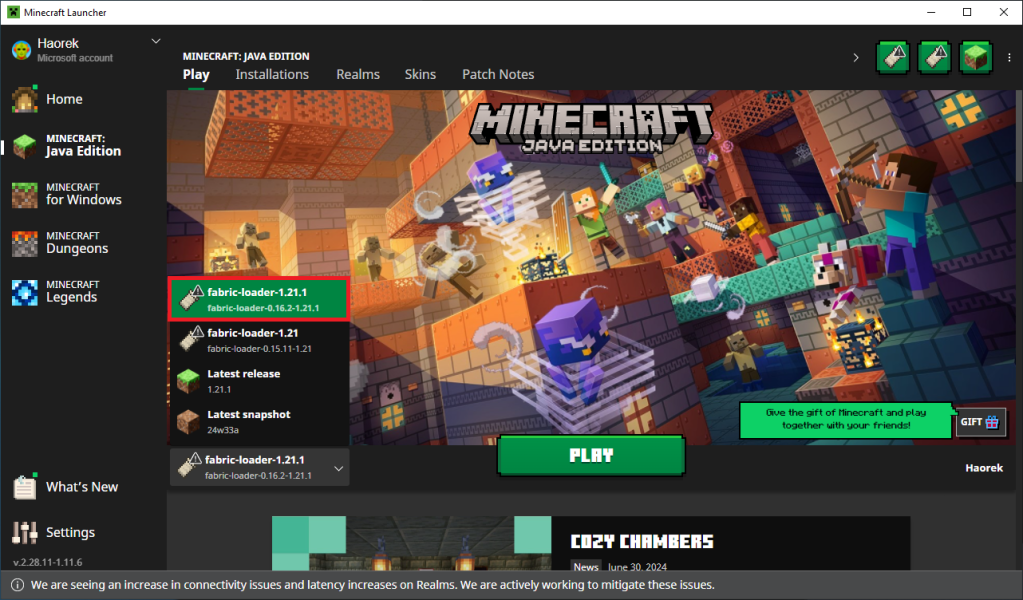
I recommend launching Minecraft at least once to ensure that the Fabric Loader installed correctly. You should see Minecraft (version)/Fabric (Modded) at the bottom left of the Minecraft main menu.
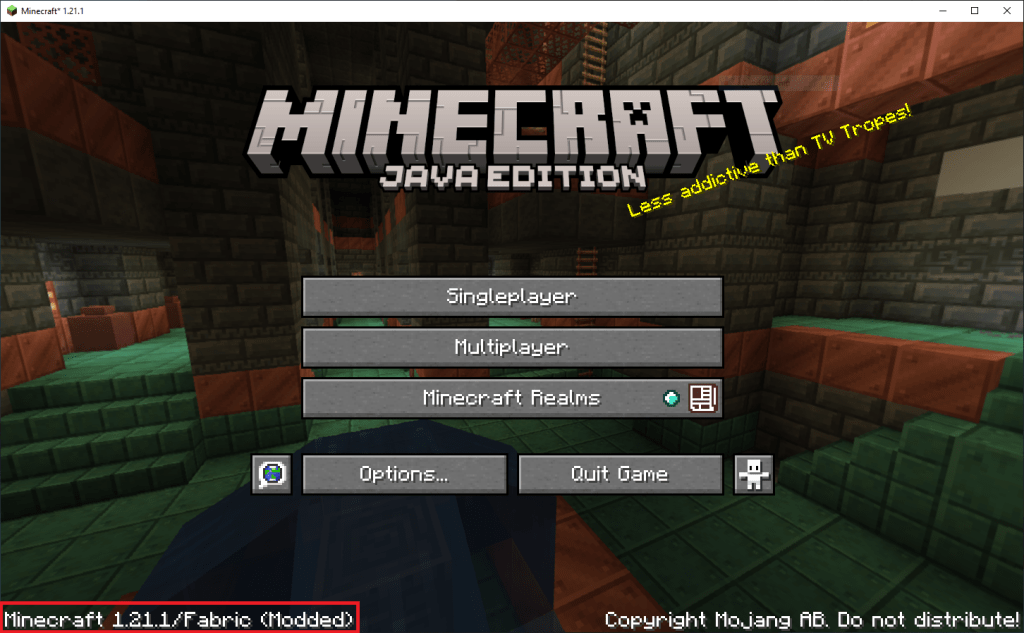
You should now close Minecraft.
Now to actually install the mods we downloaded earlier.
To do this, go to %appdata% again in File Explorer and go to your mods folder.
Open another File Explorer window and go to your Downloads Folder.
Highlight all of the Mods you downloaded earlier and drag them over to your mods folder.
Once all of the mods have been moved over to the mods folder, open Minecraft again and your mods should be working as intended.
If you have an questions or concerns, please contact me.
 Haorek Minecraft Updates!