This page will have my personal recommended performance mods for Minecraft Java Edition.
I’m making this page because I think it’s important as a Server Owner that I take some time to make sure that the people playing on my server have as good of an experience as possible.
The Mods listed here are ones that I personally use in my Minecraft install.
Youtube Video on How to Install the Mods
Youtube Link: https://www.youtube.com/watch?v=tSVnhAGOpgI
How to Install Mods to Java Edition.
To install mods on the Java Edition of Minecraft follow the below steps. These are the proper ways to install mods as of July 30th 2024. It is possible that the install process changes for some of these mods.
Please make sure that you are using the correct version of Minecraft for my server. You can find what version my server is running here:
Mods also require you to download the correct version for the version you are playing. Mods will take some time to update to the most recent version of Minecraft, so the server might be running an older version of Minecraft.
The first step is to download and install the Fabric Installer from https://fabricmc.net/use/installer/.
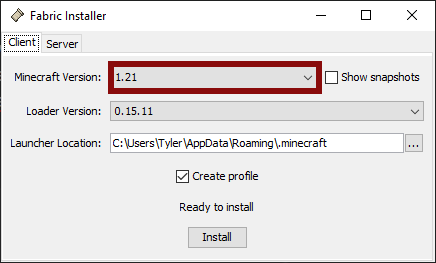
To run the installer, simply download and click on the Fabric-Installer.exe file that was downloaded. Select the correct version of Minecraft. In this case, we will be using Minecraft version 1.21.
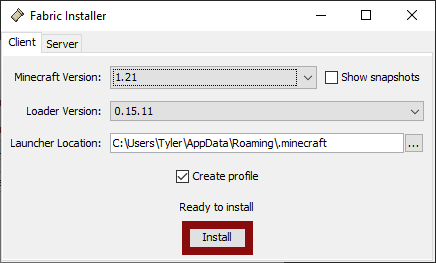
Click the Install button when you have the correct version selected. It will now install the Fabric Loader and create a new profile in the Minecraft Launcher.
Now that the Fabric Loader is installed, we want to run the game at least once. Click the play button in the Minecraft Launcher. When you get to the Main Menu, the bottom left of the screen should show Minecraft *version*/Fabric (Modded). This indicates that Fabric has loaded properly.
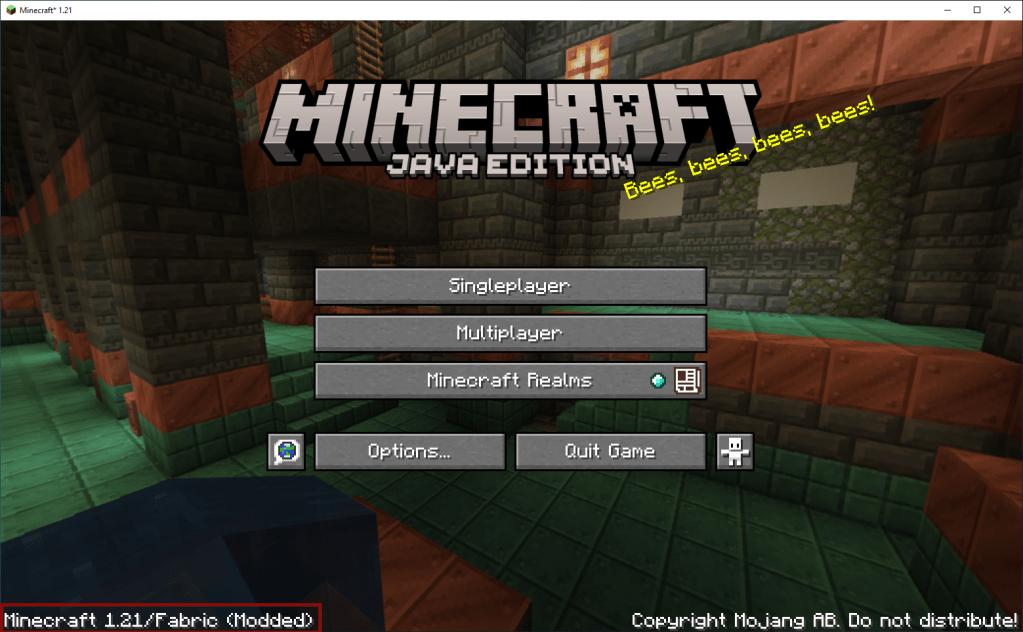
If it does not show (Modded) at the bottom of the screen, go through the steps again and make sure you have installed the Fabric Loader correctly.
Download Links
Now to get to the actual Mod Downloading. Below are the list of mods we will need to download. Ensure you are downloading the correct version of the Mod for the Minecraft Version you are playing on.
- https://modrinth.com/mod/fabric-api
- https://modrinth.com/mod/lithium
- https://modrinth.com/mod/sodium
- https://modrinth.com/mod/appleskin
- This last mod is not for for performance. All it does is make the HUD (Health and Hunger) look better in my opinion.
Install the Mods
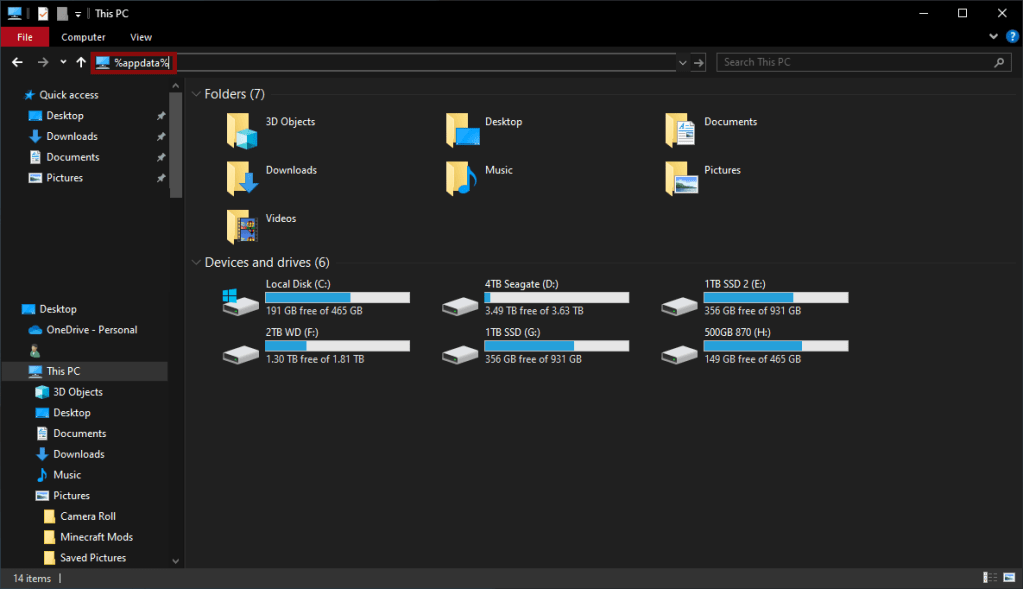
To install the Mods we just downloaded, open up Windows Explorer (The little folder on your Taskbar). At the top of Windows Explorer, type in %appdata%. You should see a folder called .minecraft, double click to open this folder.
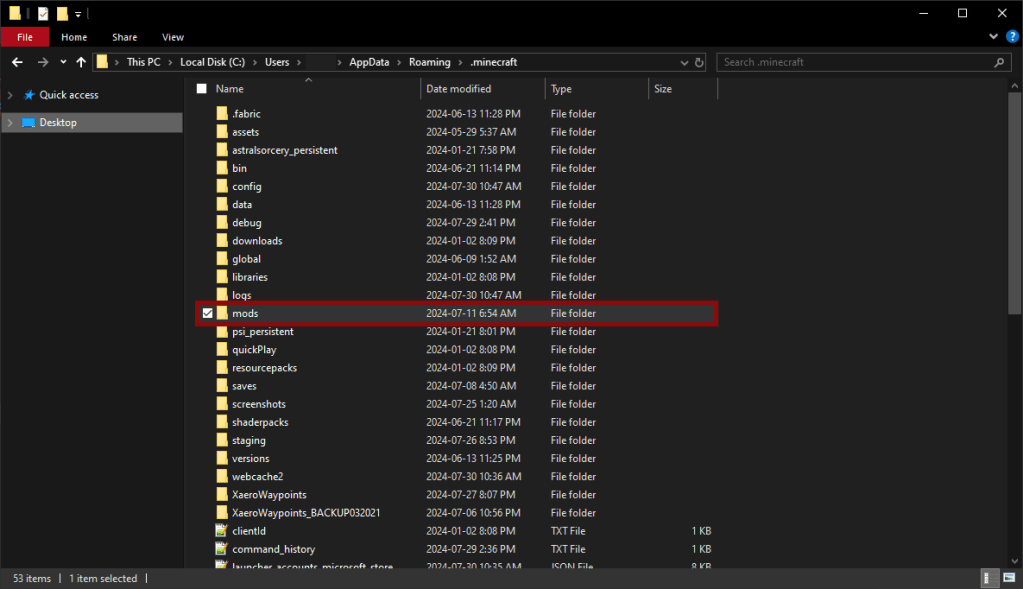
Find the Mods Folder. If there is no Mods Folder already there, right click in Windows Explorer and create a new folder called mods.
Find the Mods in your Downloads Folder and highlight each of them and then press Control + x. This should make the folders a little bit see through.
Go back to %appdata%, then .minecraft and find the Mods folder. Open the Mods folder and press Control + v. This should paste the mods in to the folder.
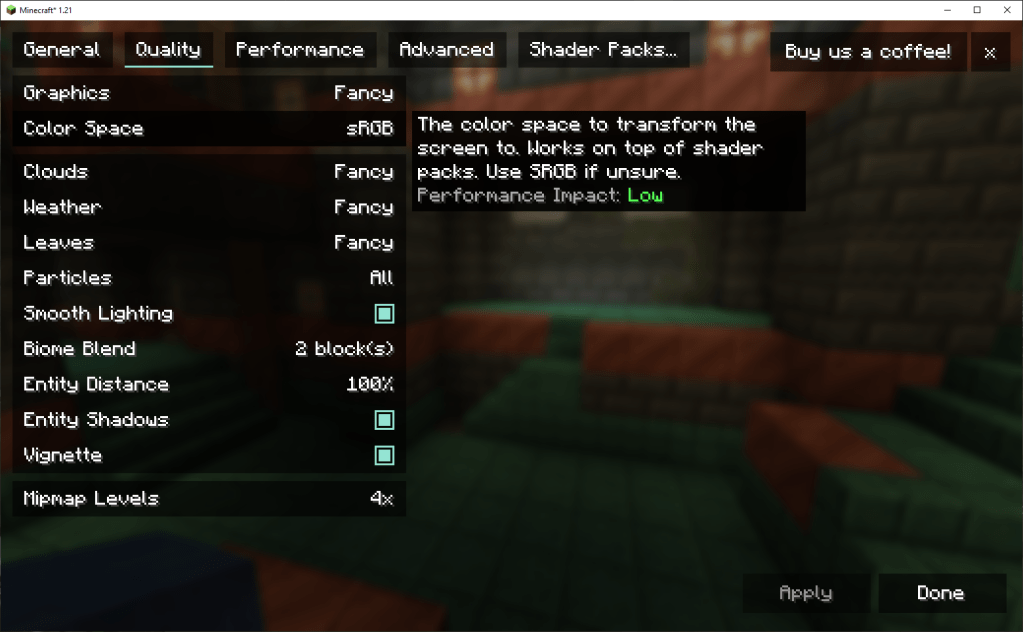
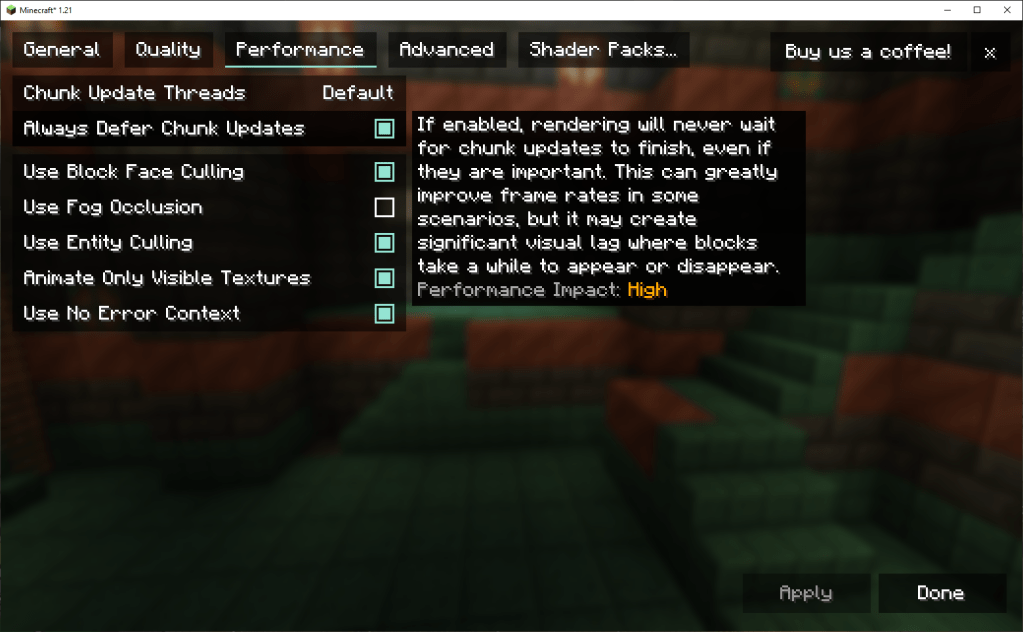
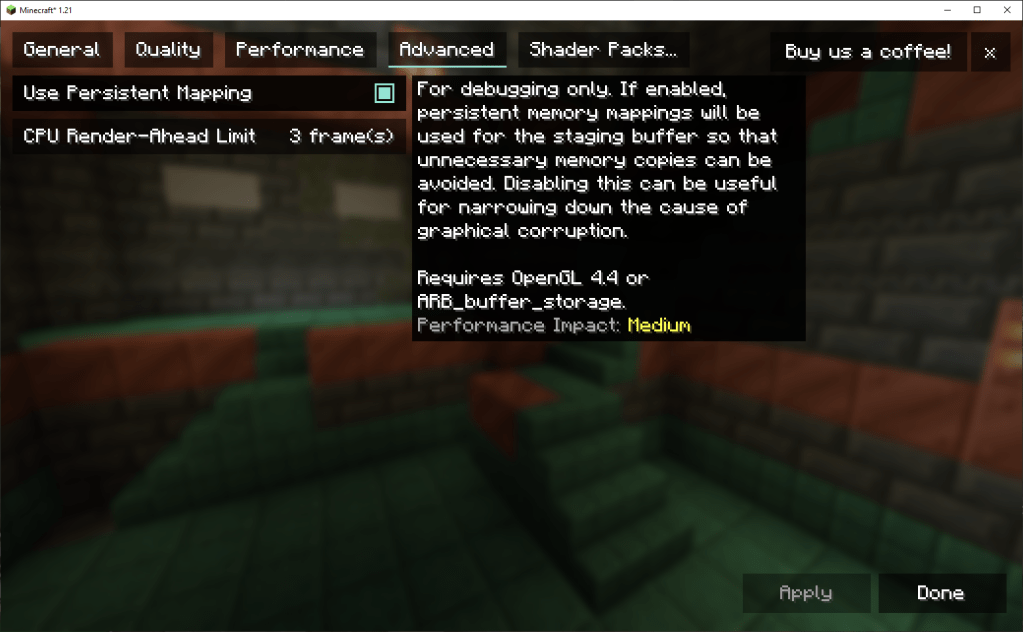
Go to Video Settings and play with the settings until you get the performance that you are OK with. Some computers might be very old and not get great performance, but there should be a noticeable performance difference when you play the game with these Mods installed.
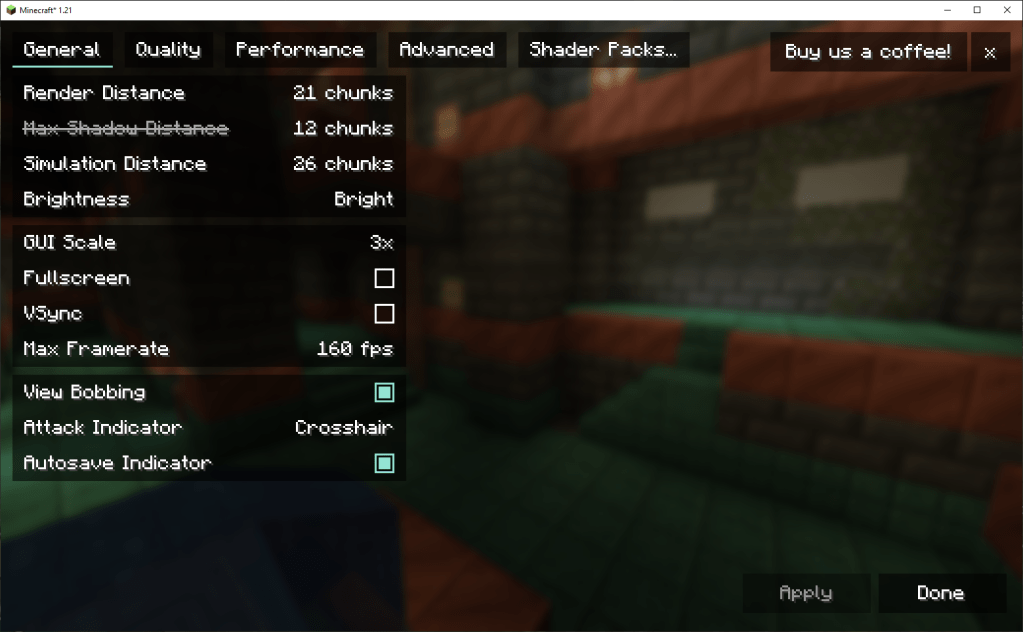
My Minecraft Video Settings
Here are my settings, that work well for my computer. These settings might not work well on your computer as you will likely have different hardware than I do.
 Haorek Minecraft Updates!